Export your data and PDF reports
LLM Pulse lets you export table data to CSV or Excel for offline analysis and integrations. You can also create branded PDF reports from key analysis pages for client and stakeholder updates.
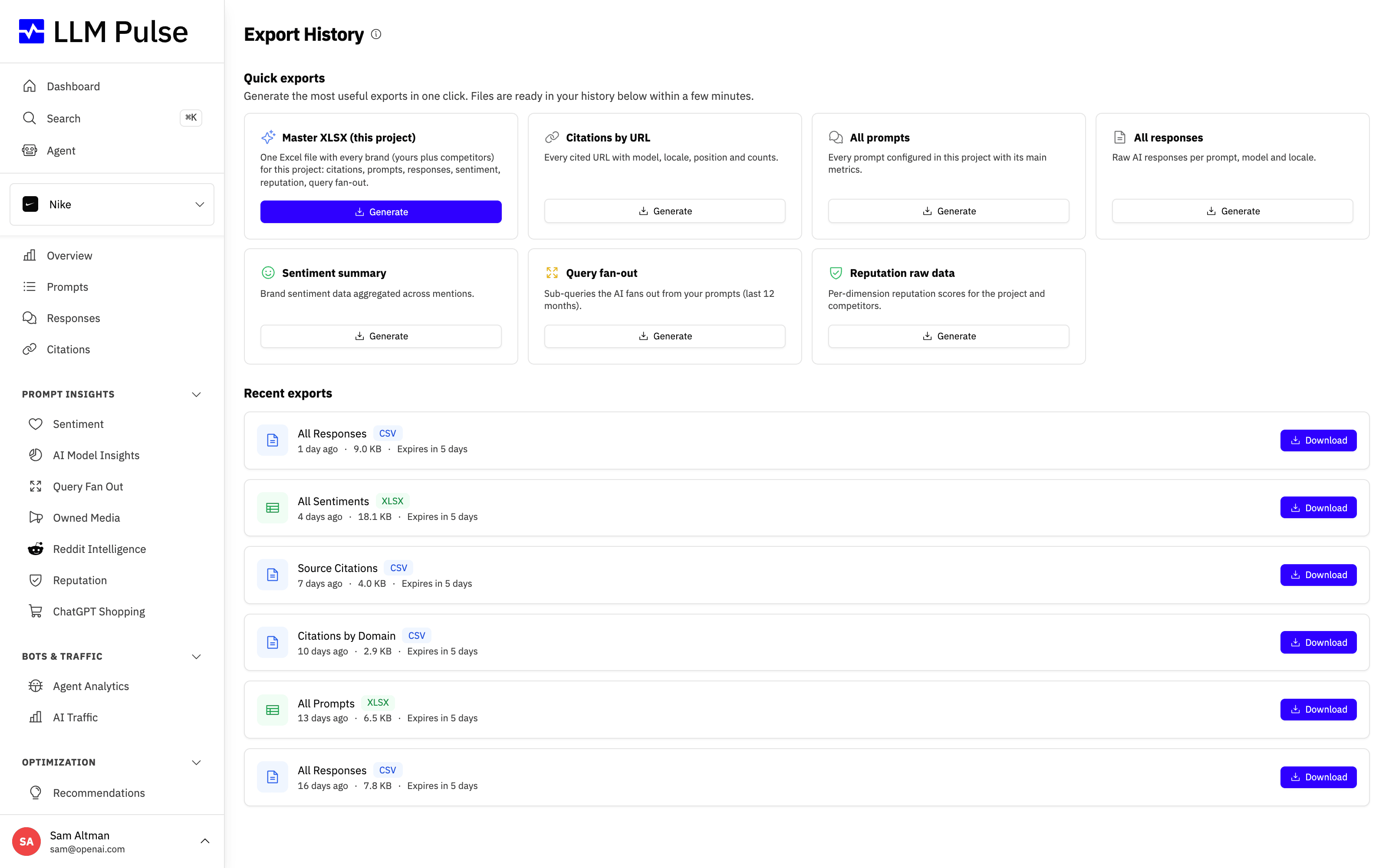
Every export you generate is collected on the Export History page, where you can track its status and download the finished file.
What it does
- CSV and Excel exports from any data table in the platform
- Export history page shows all your recent exports with download links
- Exports respect your current filters (date range, model, tags, brand, mentions, citations and competitors)
- Exports are generated asynchronously, you get a notification when ready
- Download links are available for a limited time
How to use it
- Navigate to any data page (Prompts, Citations, Sentiment, etc.)
- Look for the Export table button (usually near the top of the table)
- Choose CSV or Excel format
- Wait for the notification that your export is ready
- Download from the notification or from Exports in the profile menu
To work with a table in Google Sheets instead of downloading a file, choose Open in Google Sheets in the same menu. It creates a new spreadsheet in your own Google Drive, as described in Open a table in Google Sheets.
On the Responses page, free-text searches are written to the URL. Refreshing the page or using the browser Back button restores the same search and matching rows.
PDF report exports
Some pages can also be downloaded as a branded PDF report, ready to share with clients or stakeholders. Look for the Download report (PDF) button in the page header of:
- Overview (the main dashboard)
- Prompts
- Recommendations
- Sentiment
- AI Traffic
- Reputation
- Custom Reports
- Custom AI Studies
GEO Writer task results also offer a PDF download from the Export menu on the task page.
The PDF mirrors what you see on the page, including the filters you have applied (date range, AI model, tags, locale, brand, mentions, citations and competitors). PDF reports work the same way as CSV and Excel exports: the report is generated in the background, you get a notification when it is ready, and it appears on the Exports page in the profile menu where you can download it for 7 days.
Supported PDF reports are also available in embedded portals. They use the portal's configured branding and stay restricted to the embedded project. The finished file appears in the portal's Export History without sending a ready email.
Tips & notes
- Exports include all data matching your current filters
- Large exports (100k+ rows) may take a few minutes to generate
- Export links expire after a set period, download promptly
- The Exports page in the profile menu shows your export history with ready downloads
- A badge on the Exports menu item shows how many exports are ready for download