How to invite team members
Team members are unlimited on every LLM Pulse plan, so you can bring in your whole team or your clients at no extra seat cost.
Find the Team Members page
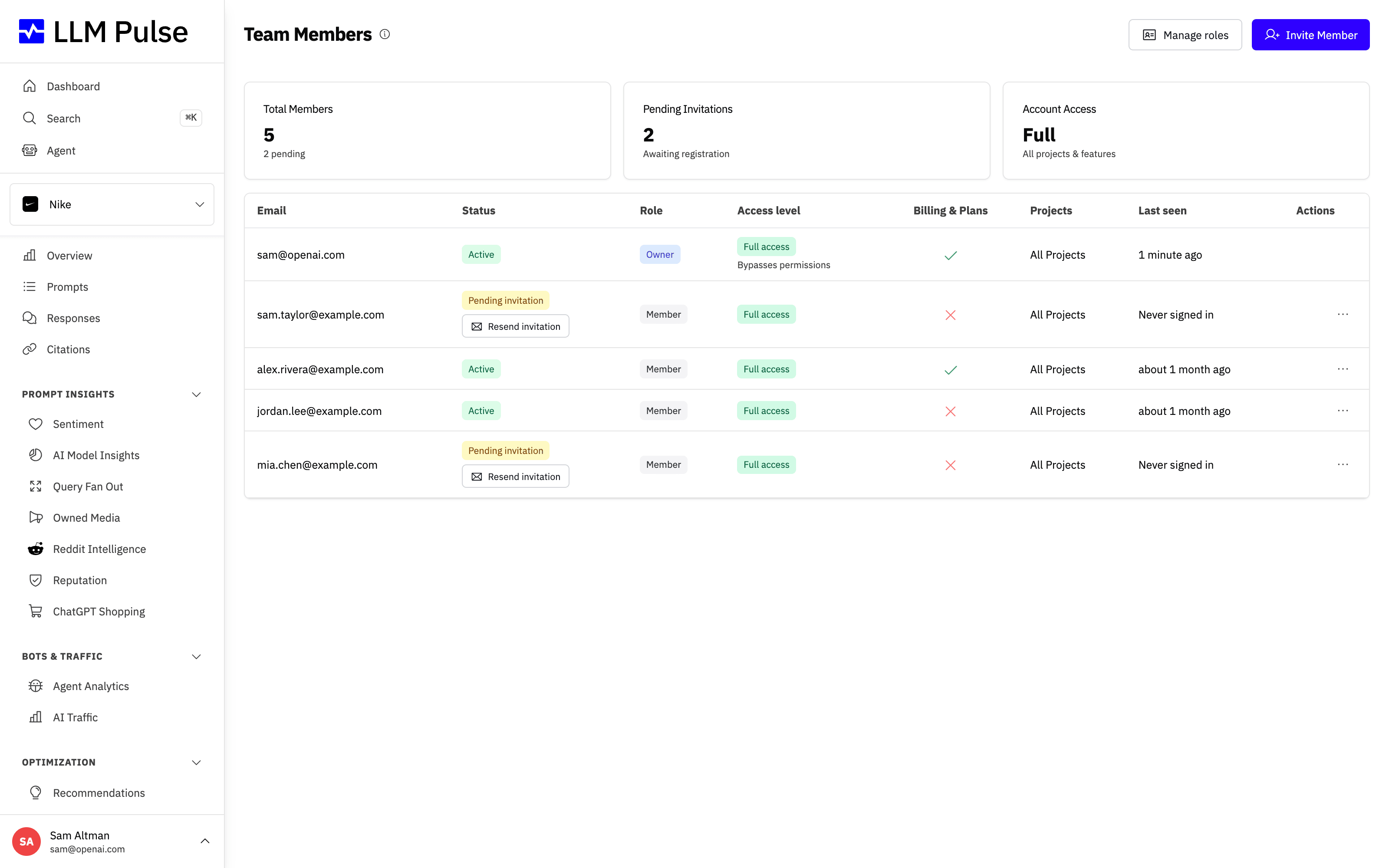
Open the profile menu in the bottom-left corner of the platform and go to Team Members. This page lists everyone in your account, their role and the per-feature access each member has, alongside an Invite Member button.
Invite a new member
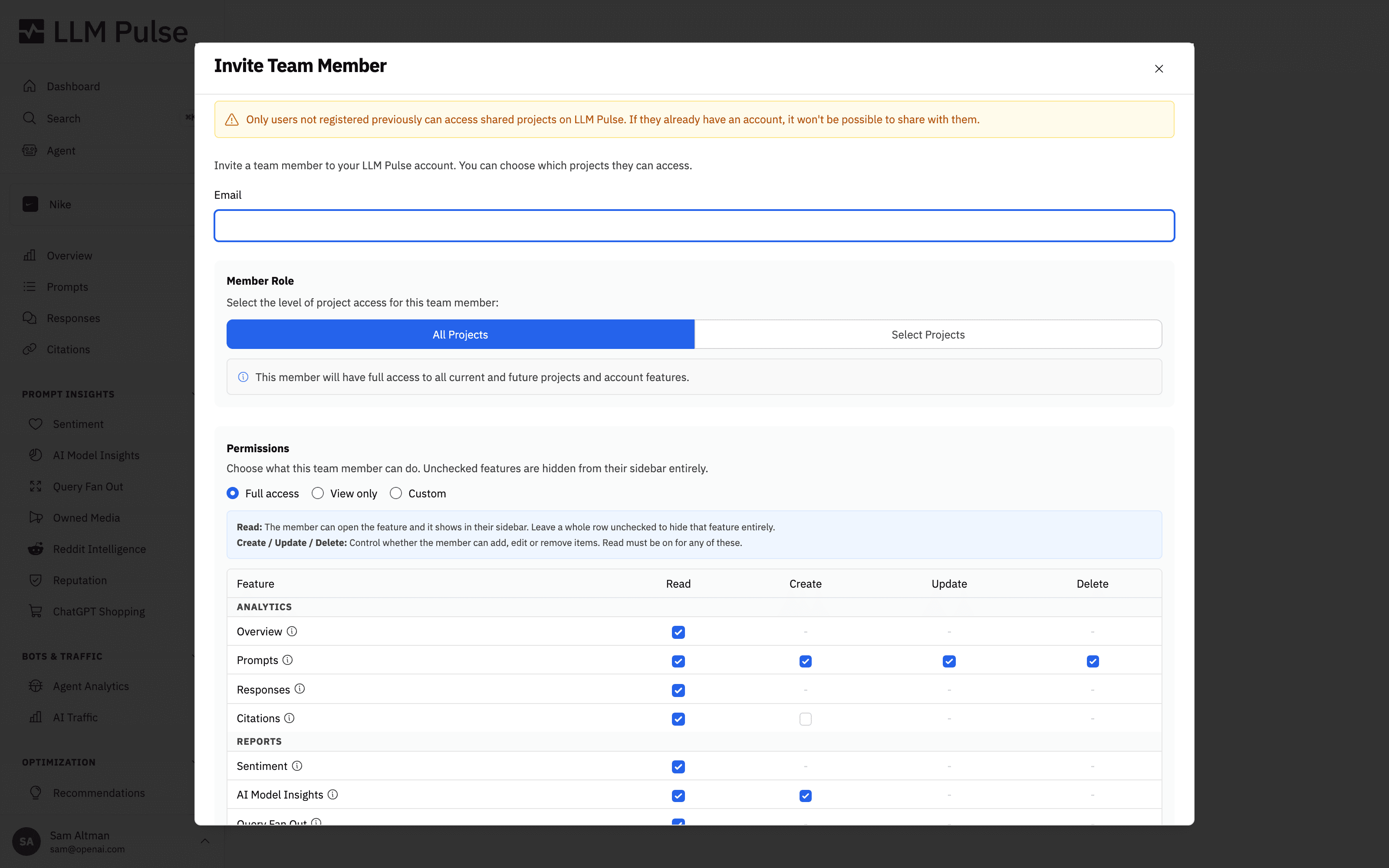
Click Invite Member to open the invite form. Enter the teammate's email, then choose whether they should have access to all projects or only selected projects, so each person sees exactly the projects they need.
A team member limited to specific projects can point a saved data source (a Google Analytics or Search Console property, a Cloudflare zone, a Bunny pull zone, or an Amazon S3 region, prefix or endpoint) somewhere else only after connecting it again with their own Google account, token, key or S3 key pair, and only to one those credentials reach. The account owner and members with access to all projects can change it on the saved connection.
Set what each member can do
Below project access you'll find the permissions matrix. For each feature (Prompts, Citations, Competitors, Reports, Recommendations, Exports, and more) you decide whether the member can Read, Create, Update or Delete. Analytics and report pages are read-only, so they only offer a Read option.
If you leave every box unticked for a feature, that feature disappears from the member's sidebar entirely: they simply never see it, rather than seeing it and being told they lack access. This makes it easy to give a client a clean, read-only view of just their own data.
To move faster you can use the role options at the top of the matrix:
- Full access uses the shared full-access role.
- View only uses the shared read-only role, perfect for clients who should look but not change anything.
- Custom lets you manage that member's matrix directly.
Billing & Plans access is controlled by a separate toggle. It is off by default for team members and can only be granted by the account owner or an admin. A member with this access can change the plan, tracking cadence and billing interval; buy or schedule removal of add-ons; view invoices; update payment details; and cancel the subscription. Grant it only to someone trusted to manage the account's payments.
Make a member an account admin (co-owner)
Sometimes the account owner is not the person running things day to day. From the Edit member modal you can flag a trusted member as an Account admin. An account admin can invite members, edit, block and remove other members, and manage your account roles, just like the owner, but they do not get Billing & Plans access. Only the account owner (or an admin) can turn this on, and an account admin cannot grant it to anyone else, cannot edit the owner, and cannot edit another account admin. They also cannot change a role assigned to themselves or to another account admin. An account admin who does not have Full access can still invite, block and remove members, but invites them with a copy of their own access, cannot edit members and cannot manage account roles. To rotate the embed signing secret, change the embed custom domain, allowed domains or font CSS URL, or make the embed custom CSS load a new address (a new url() or @import), an account admin needs access to every project and every feature; otherwise only the owner can do it. Grant it only to people you fully trust.
Delegate invitations
If a member has permission to invite other members, they can send invites without becoming an owner. New members invited this way inherit the inviter's feature and project access, and they cannot receive Billing & Plans access from that delegated invite. A delegated inviter cannot invite someone whose invitation is still pending; the account owner or an account admin can resend it instead.
Resend a pending invitation
If a teammate hasn't accepted their invitation yet, their row on the Team Members page shows a Resend invitation button. You can resend the invitation email up to 2 times per person; after that the button goes away. The registration reminder in the row's actions menu shares that same allowance of 2, so a reminder and a resend each count once. If you run out, remove the pending member and invite them again.
Once you send the invite, the new member receives an email to join your account. You can return to the Team Members page at any time to edit a member's projects and permissions or remove them. Because seats are unlimited on every plan, you can keep inviting teammates and clients without ever paying a per-seat fee.