How to delete a project
Open Project Settings
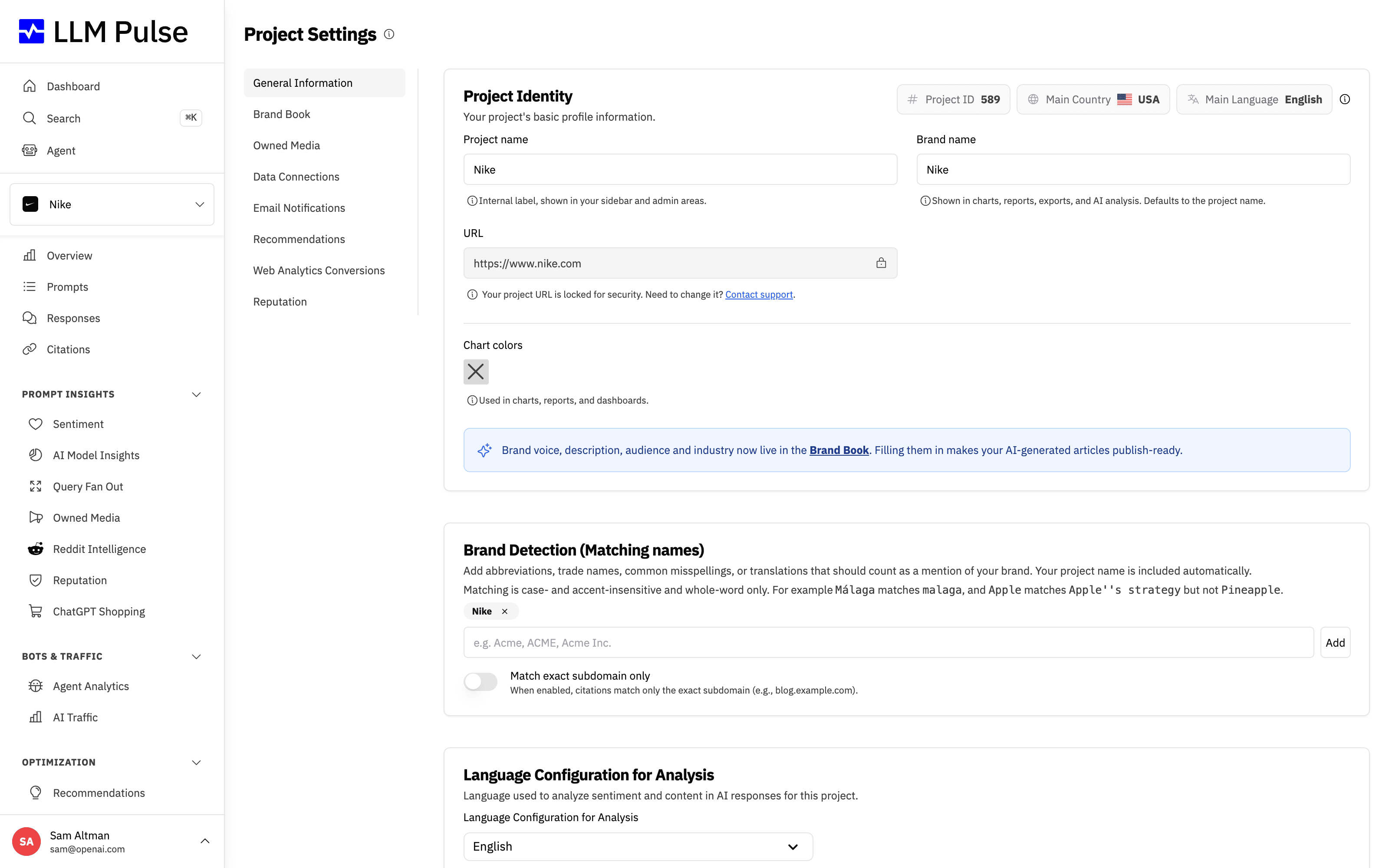
To delete a project in LLM Pulse, go to the "Project Settings" section located in the left sidebar under "Preferences." This page holds your project identity, brand detection and language configuration. Scroll to the bottom to find the "Delete Project" option, then click the "Delete Project" button to proceed.
Confirm the deletion
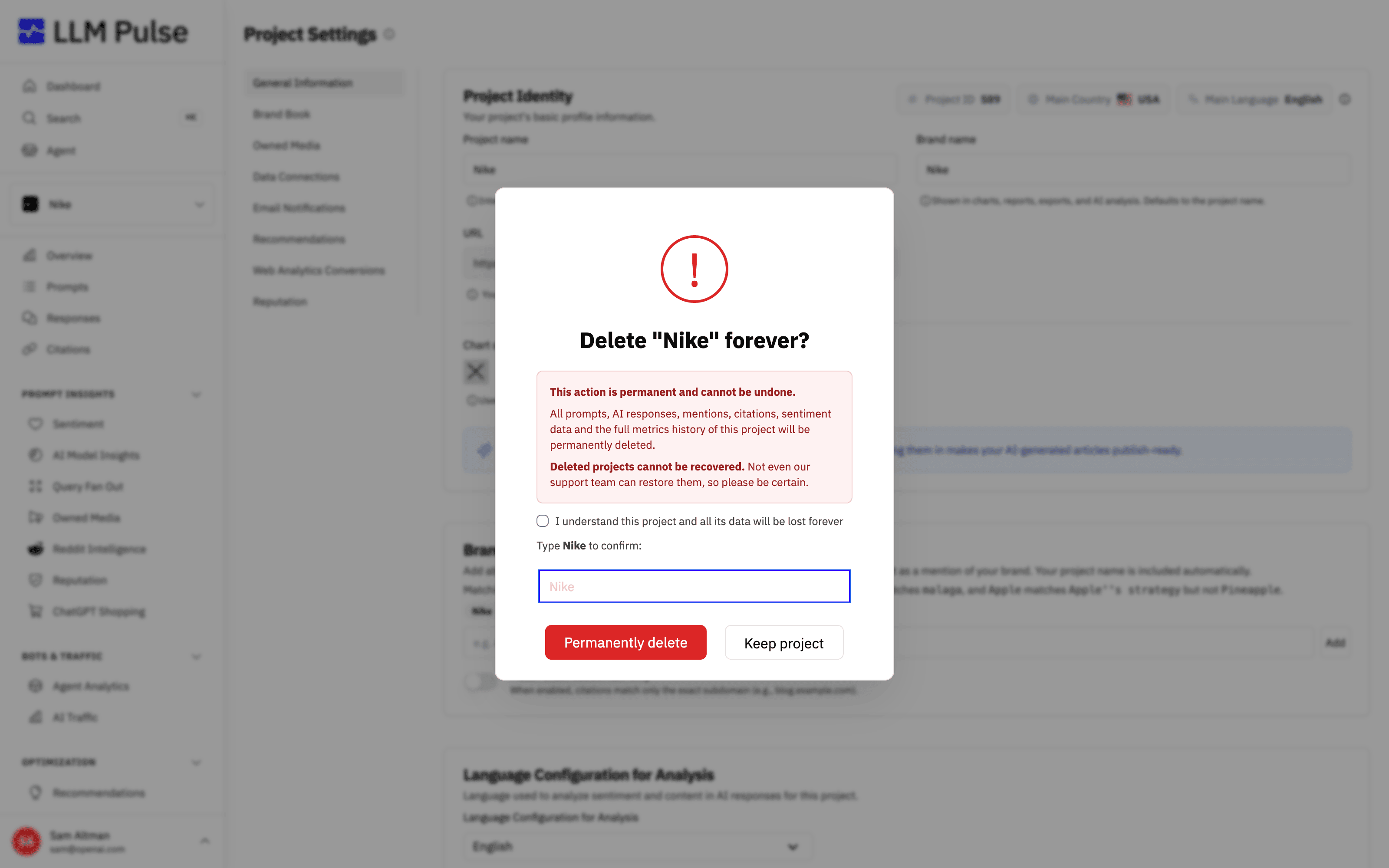
A confirmation window will appear warning you that the deletion is permanent. It lists everything that will be removed along with the project: prompts, AI responses, mentions, citations, sentiment data and the full metrics history.
To proceed, tick the "I understand this project and all its data will be lost forever" checkbox, type your own project name exactly as it appears (for example "Nike") in the field provided, then click the "Permanently delete" button.
Deleted projects cannot be recovered, not even by our support team. All project data is permanently erased, so be certain you no longer need the project before deleting it. If you only want to stop tracking temporarily, consider keeping the project and reducing its prompts instead.