Conjunto de Otimização GEO
O Conjunto de Otimização GEO reúne 10 ferramentas para ajudar a otimizar o seu site para motores de pesquisa com IA. Cada ferramenta analisa um aspeto diferente da preparação do site para a IA.
Com o Conjunto de Otimização GEO, pode:
- Avaliar a preparação de todo o seu domínio para agentes de IA, considerando ficheiros de descoberta, formatos de conteúdo, regras de acesso e interfaces de agentes
- Gerar e validar ficheiros llms.txt e robots.txt para que os crawlers de IA possam encontrar e utilizar o seu conteúdo
- Verificar se os bots de IA conseguem realmente rastrear e renderizar as páginas principais do seu site
- Auditar a marcação schema e a estrutura do conteúdo para avaliar a preparação para IA
- Corrigir lacunas técnicas que impedem os modelos de IA de citar o seu site
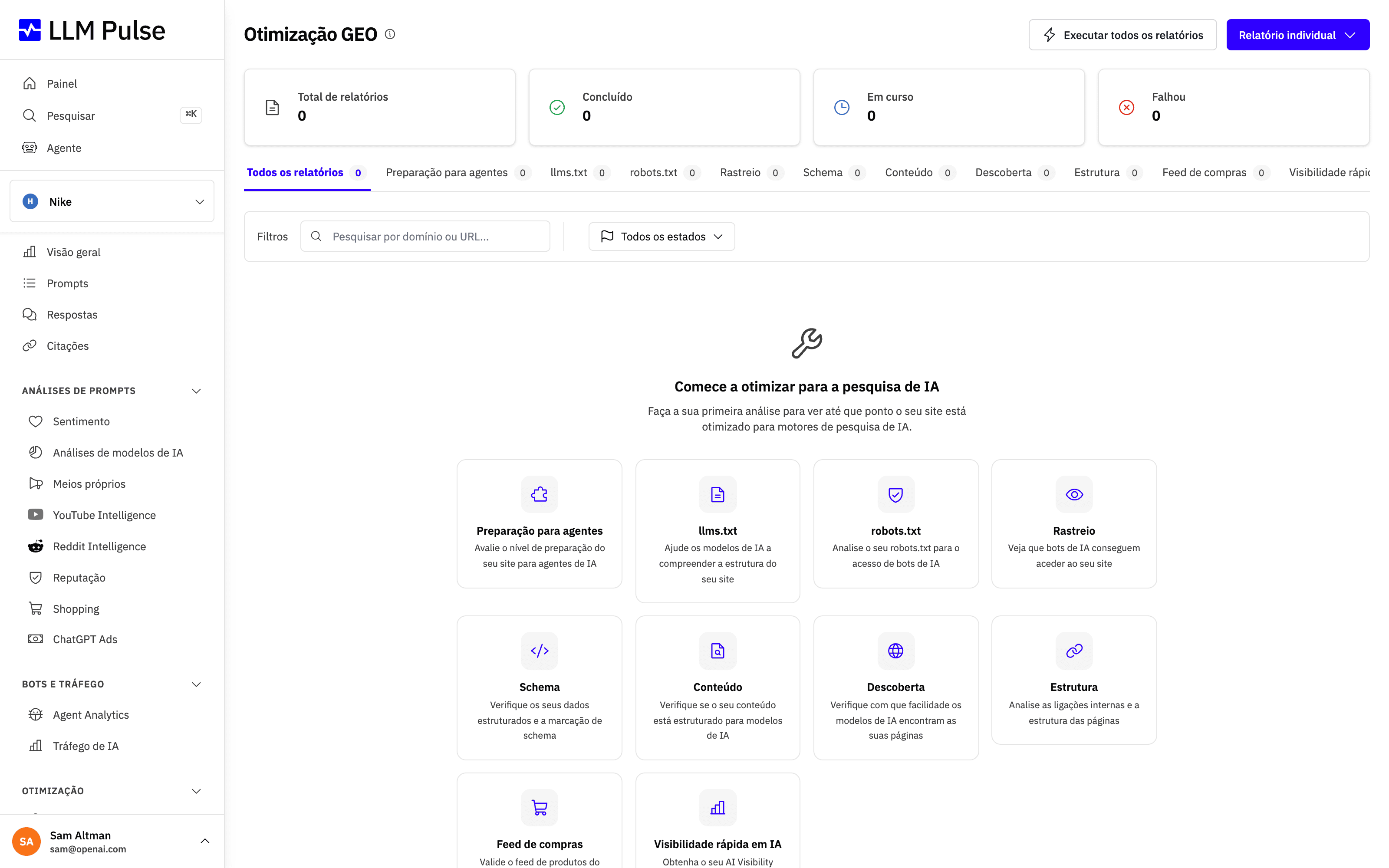
Alterne entre as ferramentas nos separadores no topo da página Otimização GEO. Cada secção abaixo corresponde a um tipo de análise.
Relatório de preparação para agentes
Avalia o seu domínio segundo quatro dimensões que determinam se um agente de IA consegue encontrar, ler e agir no seu site. Executa cerca de vinte pedidos apenas de leitura à raiz do site, pelo que termina em menos de um minuto e não rastreia as suas páginas.
- Descoberta: robots.txt, sitemap XML, llms.txt e llms-full.txt, e cabeçalhos HTTP Link.
-
Conteúdo legível por máquina: negociação de conteúdo Markdown (um pedido
Accept: text/markdown), uma variante de URL em Markdown, JSON-LD e deteção automática de feeds. - Acesso e permissões: regras de robots.txt por crawler, a diretiva Content Signals e um pedido em tempo real enviado com o User-Agent de um crawler real. Também procuramos um diretório Web Bot Auth, mas apenas o indicamos, sem o pontuar: esse ficheiro é publicado pelos operadores dos crawlers para anunciar as respetivas chaves de assinatura, pelo que um site normal não tem motivos para o disponibilizar.
- Interfaces de agentes: cartão do servidor MCP, índice de competências de agentes, catálogo de API, documento OpenAPI, descoberta OAuth, cartão de agente A2A e catálogo Agentic Resource Discovery.
É também analisado e apresentado um quinto grupo, o comércio por agentes (x402, Agentic Commerce Protocol, Universal Commerce Protocol e AP2), mas fica deliberadamente fora da pontuação porque estas normas ainda estão a evoluir.
Se o pedido em tempo real do crawler falhar, o relatório não apresenta uma pontuação numérica elevada como se fosse um resultado saudável. O anel da pontuação fica vermelho, surge o distintivo Acesso por resolver por baixo e um aviso junto à pontuação inclui o estado HTTP. O número continua visível porque resume todas as verificações, embora o acesso do crawler continue por resolver.
Tenha estes pontos em conta ao ler o relatório:
- A verificação do crawler em tempo real testa o User-Agent, não o IP. Enviamos um User-Agent de crawler real a partir da nossa rede. Um bloqueio significa que a cadeia do User-Agent foi recusada. Um site que verifica crawlers pelo intervalo de IP ou pela assinatura do pedido pode bloquear-nos e, ainda assim, permitir o acesso ao crawler real. Encare uma falha como motivo para rever as regras do seu sistema de proteção, não como prova de uma configuração incorreta.
- Uma pontuação baixa em interfaces é normal atualmente. Os cartões de servidor MCP e os catálogos de API são recentes, e a maioria dos sites não publica nenhum deles. A ponderação da dimensão permite que os elementos básicos continuem a contar para a pontuação.
-
O cartão do servidor MCP não é um ficheiro well-known. Procuramo-lo através do catálogo Agentic Resource Discovery em
/.well-known/ai-catalog.json, onde a especificação indica que um cartão deve ser anunciado. Alguns guias recomendam publicá-lo em/.well-known/mcp/server-card.json, mas a especificação exclui essa localização. Se encontrarmos um cartão aí, assinalamo-lo para que o possa mover, em vez de o considerarmos válido.
No painel, o relatório inclui ainda a secção Declarado vs observado, que não está disponível num relatório público: compara o que o seu robots.txt declara com o que o seu sistema de proteção fez efetivamente aos agentes reais nos últimos 30 dias, com base nos dados do Agent Analytics. Assinala duas divergências: um crawler que continua a rastrear o site apesar de estar bloqueado e um crawler a que permite o acesso, mas cujos pedidos devolvem sobretudo erros.
A mesma verificação está disponível sem conta através do Verificador de preparação para agentes, uma ferramenta gratuita.
Relatório rápido de visibilidade em IA
Gera, a pedido, um relatório de visibilidade para qualquer domínio e mostra como este aparece nos vários modelos de IA. É uma fotografia pontual, não a monitorização semanal dos Prompts do seu projeto; é por isso que se chama "rápido".
O mesmo relatório está disponível sem conta como Relatório gratuito de visibilidade de IA. Na aplicação, chama-se Relatório rápido de visibilidade em IA, é executado para o projeto aberto e pode ser exportado para PDF.
Gerador de llms.txt
Cria um ficheiro llms.txt para o seu site: um documento Markdown que ajuda os modelos de IA a compreender de forma eficiente o conteúdo oficial do site.
Ao criar o relatório, escolha o idioma dos ficheiros no campo Idioma de saída (no formulário Executar todos os relatórios, o campo chama-se Idioma do llms.txt). Na aplicação, o idioma do projeto fica predefinido; o gerador público deteta automaticamente o idioma do próprio site. O relatório concluído indica o idioma em que os ficheiros foram escritos.
Pode rever e editar os ficheiros gerados antes de os publicar. Num relatório concluído, Editar conteúdo abre uma caixa de texto para cada ficheiro (llms.txt e llms-full.txt). Depois de selecionar Guardar alterações, a página do relatório, ambas as transferências e a exportação em PDF passam a utilizar a sua versão. O relatório indica também quando foi editado. Reverter para a versão gerada repõe os ficheiros originais; Executar novamente cria um relatório novo, sem as suas edições. Para editar, precisa da mesma permissão que para executar relatórios de Otimização GEO.
De onde vem o conteúdo do llms.txt
O Gerador de llms.txt cria ambos os ficheiros apenas a partir de páginas do seu domínio e dos respetivos subdomínios (por exemplo, www., docs. ou blog.). Uma pesquisa limitada ao seu site encontra essas páginas e um modelo de IA redige os ficheiros com base no respetivo conteúdo. As páginas de outros sites ficam de fora, incluindo as de organizações parceiras ou afiliadas com domínio próprio; os ficheiros não incluem ligações para esses sites. Para abranger outro domínio, execute um relatório separado para esse domínio.
Como os ficheiros são redigidos por IA, o relatório, o PDF e o editor apresentam um aviso a pedir-lhe que verifique todos os factos e ligações antes de publicar. Os relatórios criados antes desta alteração apresentam um aviso diferente: os respetivos ficheiros resultaram de uma pesquisa na Web que podia incluir outros sites. Execute novamente esses relatórios para gerar os ficheiros apenas a partir do seu próprio site.
Se a pesquisa não encontrar páginas no seu site, o relatório falha e pede-lhe que confirme se o site está online e acessível aos motores de pesquisa. Se o site redirecionar para outro domínio, execute o relatório para esse domínio.
Verificador de robots.txt
Analisa o seu ficheiro robots.txt para verificar se os crawlers de IA (GPTBot, ClaudeBot, GoogleOther, entre outros) estão autorizados ou bloqueados.
O relatório também apresenta todas as linhas Content-Signal encontradas e o respetivo âmbito: todo o site ou apenas o caminho indicado no início da linha (por exemplo, Content-Signal: /blog/ ai-train=no, o formato apresentado por contentsignals.org para páginas específicas). O veredicto de acesso continua a seguir a norma robots.txt, que ignora as linhas que não define. Por isso, uma linha Content-Signal nunca é assinalada como erro de sintaxe nem altera se um crawler pode ou não aceder ao site.
Verificador de capacidade de rastreio GEO
Compara o HTML estático com o conteúdo renderizado por JavaScript para identificar o que os crawlers de IA conseguem ver nas suas páginas.
Os avisos de consentimento de cookies são excluídos automaticamente desta comparação. Plataformas como Cookiebot ou OneTrust inserem o aviso e a declaração de cookies através de JavaScript. Isso pode acrescentar milhares de palavras de texto padrão à página renderizada e fazer com que a pontuação de paridade de conteúdo pareça muito pior do que é. Quando deteta um aviso de consentimento, o relatório indica quantas palavras foram excluídas.
A verificação no navegador continua mesmo quando o pedido estático do crawler é bloqueado. Se a automatização do navegador também falhar, uma recolha alternativa poderá concluir o relatório. Em qualquer dos casos, o relatório apresenta um aviso que identifica o resultado utilizado e explica quando a comparação poderá ser menos precisa.
Nomes das secções do relatório
O relatório compara uma recolha estática com uma renderização completa no navegador. No entanto, os nomes das secções apresentadas correspondem ao que comparam, não aos dois métodos de recolha:
- Como os motores de IA veem esta página: apresenta um resultado por motor (vê o conteúdo completo, parcial, pouco conteúdo ou nenhum; ou a página está indexada, mas com snippets bloqueados). Só o motor de renderização da Google executa JavaScript.
- Comparação de conteúdo: Palavras estáticas (o que os bots de IA veem), Palavras renderizadas (o que os navegadores veem) e Paridade de conteúdo, a proporção do conteúdo que está visível para os bots de IA.
- Comparação de meta tags e Dados estruturados (JSON-LD): apresentam duas colunas, Estático (crawler) e Renderizado (navegador), para mostrar que tags e schemas só aparecem depois da execução de JavaScript.
- As restantes secções chamam-se Diretivas de indexação e IA, Tamanho da resposta HTML inicial, Ligações, Imagens, Detalhes técnicos e Recomendações.
Como saber se uma firewall está a bloquear o rastreio
Se o seu site estiver protegido pela Cloudflare ou por outro sistema de proteção contra bots e quiser confirmar se está a bloquear o nosso acesso, procure o aviso âmbar "Pedido do crawler estático bloqueado". Surge quando o pedido estático devolve um estado HTTP de bloqueio. O aviso "Proteção anti-bot detetada" aparece quando uma recolha recebe uma página de desafio em vez do conteúdo real. O aviso azul "Relatório concluído com uma obtenção alternativa" significa que o relatório foi concluído, mas a comparação renderizada poderá ser menos precisa.
A pontuação de capacidade de rastreio GEO não é uma percentagem de bloqueio. Uma pontuação de 80% não significa que 20% do seu site está bloqueado. A pontuação também diminui quando parte do conteúdo só aparece depois da execução de JavaScript ou quando há problemas com meta tags, ligações ou schema. Consulte as conclusões abaixo da pontuação para identificar a verificação que falhou.
Para validar uma alteração à firewall feita pela sua equipa de TI:
- Abra Preferências > Definições do projeto > Informações gerais e ative a Identificação do crawler. As contas padrão apresentam
LLMPulseBot/1.0; os portais Full Whitelabel apresentamAnalyticsCrawler/1.0, um User-Agent neutro em termos de produto. - Peça à sua equipa de TI para autorizar exatamente esse User-Agent. Autorizar apenas o GPTBot não é suficiente, porque a fase de renderização utiliza um navegador sem interface gráfica.
- Execute novamente o relatório de capacidade de rastreio no mesmo URL e compare-o com o anterior: o aviso anti-bot deverá desaparecer e as palavras estáticas deverão corresponder ao conteúdo real.
Se a Cloudflare bloquear o rastreio
Para um relatório executado no projeto, ative Preferências > Definições do projeto > Informações gerais > Identificação do rastreador. A opção está desativada por predefinição e aplica-se apenas a relatórios executados no projeto. O User-Agent padrão é Mozilla/5.0 (compatible; LLMPulseBot/1.0; +https://llmpulse.ai/bot). Os portais Full Whitelabel utilizam Mozilla/5.0 (compatible; AnalyticsCrawler/1.0).
Se gerir o Cloudflare, consulte Security > Analytics > Events para identificar o produto ou a regra que bloqueou o pedido, bem como o host, o caminho, o método e o User-Agent exatos. Se confirmar que está a ser analisado um caminho específico de uma página pública, limite qualquer exceção a esse host e caminho, aos métodos GET/HEAD e ao User-Agent exato. Mantenha ativos WAF Managed Rules e rate limiting. Use Skip apenas para Super Bot Fight Mode quando Events confirmar que está a bloquear o pedido. Se o bloqueio for causado por uma regra de bots criada por si, exclua dessa regra apenas os pedidos que correspondam aos critérios definidos. Não é possível ignorar Bot Fight Mode com base no User-Agent. As IP Access Rules exigem um endereço IP de origem confirmado; não temos intervalos fixos de IP de saída documentados que possamos partilhar. O User-Agent pode ser copiado e não comprova a identidade do crawler.
Analisador de schema e dados estruturados
Verifica a marcação de dados estruturados do seu site para otimização de IA e valida tipos schema.org, dados de produtos e marcação de perguntas frequentes.
Herança dos tipos de schema
Os tipos de schema herdam as regras de validação dos tipos superiores na hierarquia do Schema.org. Por exemplo, WebApplication é avaliado segundo os requisitos de SoftwareApplication, mas continua identificado no relatório pelo tipo que declara.
Recomendações baseadas em evidências
As recomendações baseiam-se em erros detetados, propriedades declaradas, relações entre entidades e sinais visíveis na página. O analisador não sugere tipos adicionais apenas para aumentar a contagem. Quando o texto visível apenas sugere um tipo de página possível, o relatório pede-lhe que o reveja e explica que não é necessária qualquer alteração se esse tipo não descrever a página. Um tipo relevante suportado garante a cobertura GEO crítica completa; acrescentar tipos sem relação com a página não melhora essa categoria.
Os sinais opcionais Speakable e sameAs só são apresentados quando detetados e não afetam a pontuação geral.
Verificador de preparação do conteúdo
Analisa se o conteúdo está estruturado e formatado de modo a que os modelos de IA o possam citar facilmente.
Relatório de descoberta e autoridade
Avalia os sinais de autoridade e a descoberta do seu domínio nas plataformas de pesquisa com IA.
Relatório de estrutura do site
Analisa a estrutura das ligações internas e a arquitetura do site para avaliar a capacidade de rastreio por IA.
Verificador do feed do ChatGPT Shopping
Valida se o seu feed de produtos é compatível com o ChatGPT Shopping.
Como utilizar
- Abra Otimização GEO na barra lateral, em Otimização.
- Selecione uma ferramenta nos separadores.
- Introduza um URL ou domínio para analisar.
- Consulte o relatório gerado, com as respetivas pontuações e recomendações.
- Descarregue o relatório concluído em PDF ou selecione Executar novamente para voltar a analisar o mesmo endereço depois de fazer alterações.
Sugestões e notas
- A Otimização GEO está disponível em todos os planos. Cada relatório técnico de GEO criado com sucesso consome uma unidade; se um relatório não for criado, não consome nenhuma. «Executar todos os relatórios» tenta criar nove relatórios e só começa quando restam pelo menos nove unidades. O limite diário predefinido é de 20 unidades por conta, partilhadas por toda a equipa da conta, tanto na aplicação como nos pedidos autenticados à API e ao MCP; algumas contas têm um limite atribuído mais elevado.
- Os relatórios incluem recomendações práticas específicas de cada ferramenta.
- Cada relatório por URL indica o estado HTTP devolvido pela página. Se a página responder com um estado diferente de 2xx (por exemplo, 404), o relatório é inválido e surge um aviso no topo: as pontuações descrevem o conteúdo devolvido pelo servidor nesse endereço, que normalmente é uma página de erro. A causa habitual é a ausência da barra final; confirme o endereço e execute novamente o relatório.
- Uma página muito grande é descarregada apenas até ao limite de tamanho (2 MB na recolha rápida e 5 MB nas recolhas alternativas). Nesse caso, o relatório apresenta Página analisada parcialmente no topo, porque os cálculos que dependem do documento completo (peso da página, estrutura dos títulos e blocos de schema) abrangem apenas a parte recolhida.
- Os relatórios são privados do projeto e podem ser consultados na página Otimização GEO. Quando executa em conjunto todas as análises incluídas para um URL, enviamos-lhe um email quando o conjunto estiver pronto.
- Algumas ferramentas, como o relatório de capacidade de rastreio, utilizam um navegador automatizado sem interface gráfica e podem demorar 30 a 60 segundos.
- Se um site protegido por regras rigorosas contra bots produzir relatórios imprecisos, abra Preferências > Definições do projeto > Informações gerais e ative a Identificação do crawler. Os crawlers de GEO e de capacidade de rastreio passam a aceder ao site do projeto com um User-Agent fixo e identificável, que a sua equipa pode autorizar na firewall ou no sistema de proteção contra bots, por exemplo, na Cloudflare. Assim, os relatórios podem refletir o conteúdo real em vez de uma página de desafio. A opção está desativada por predefinição.