Gestionar competidores y nombres coincidentes
La página Competidores te permite gestionar las marcas que monitorizas junto con la tuya. Añade competidores manualmente, usa sugerencias de IA o ajusta los nombres coincidentes para mejorar la precisión de la detección.
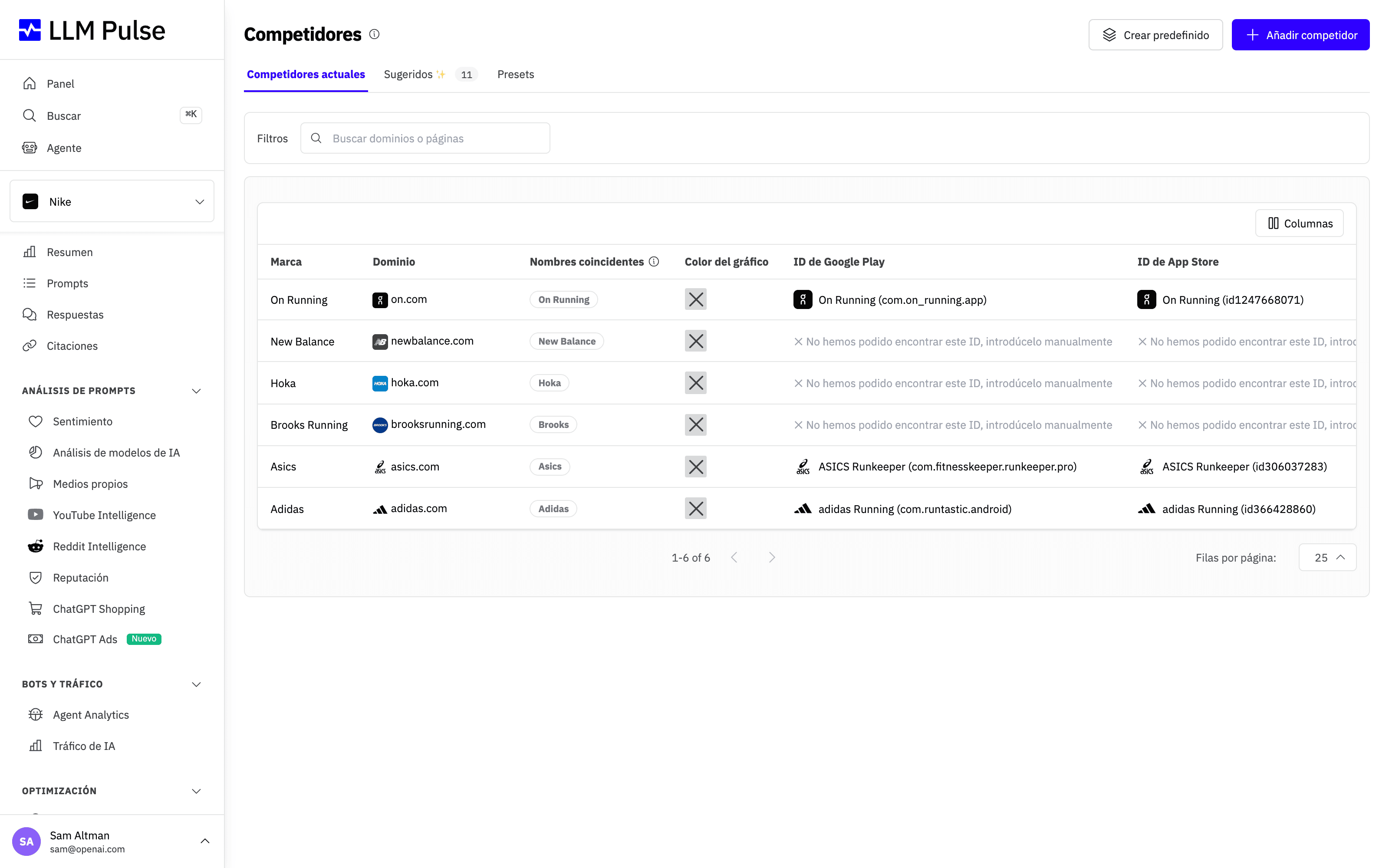
Cada fila muestra el nombre de marca del competidor que monitorizas, su dominio, los nombres coincidentes que se usan para detectarlo y el color del gráfico que mantiene la coherencia en todos los gráficos de la plataforma.
Qué hace
- Muestra todos los competidores que monitorizas, con su nombre de marca, dominio y nombres coincidentes
- Incluye una pestaña Sugeridos con vistas separadas de Descubrimiento de marcas y Basado en citaciones
- Incluye una pestaña Presets para guardar grupos de competidores con nombre y aplicarlos con un solo clic
- Permite editar los nombres coincidentes (las variantes del nombre de marca que la IA podría usar)
- Permite definir colores personalizados para los gráficos de la marca principal y de cada competidor. Configura el color principal de la marca en Configuración del proyecto > Información general > Identidad del proyecto o Configuración del proyecto > Brand Book. Los propietarios de la cuenta, los administradores y los miembros con permiso para actualizar Competidores también pueden cambiarlo directamente en la fila destacada Tu marca. Los miembros que pueden acceder a Competidores, pero no tienen permiso para actualizar Competidores, solo pueden ver los colores de los gráficos. Las sesiones embed son de solo lectura.
- Ofrece una tabla ordenable con función de búsqueda
Cómo se usa
- Ve a Competidores en la barra lateral (en Preferencias)
- Haz clic en Añadir competidor para añadir una marca manualmente (introduce el nombre y el dominio)
- Cambia a la pestaña Sugeridos. Abre Descubrimiento de marcas para consultar competidores directos identificados a partir de tu sitio web y tu mercado, o Basado en citaciones para revisar la lista sin filtrar de dominios citados.
- Haz clic en un competidor para editar sus nombres coincidentes, su dominio o el color de su gráfico. Para cambiar el color de la marca principal, usa Configuración del proyecto > Información general > Identidad del proyecto o Configuración del proyecto > Brand Book. Si tienes permiso para actualizar Competidores, también puedes cambiarlo directamente en la fila destacada Tu marca.
- Usa la acción Eliminar para quitar un competidor (se perderán los datos históricos)
Predefinidos de competidores
Si monitorizas rivales de diferentes líneas de producto o mercados, compararlos con la lista completa puede diluir tu Share of Voice con marcas que no compiten realmente contigo. Los predefinidos resuelven este problema: guarda una vez un grupo de competidores con nombre y aplícalo con un solo clic.
- Ve a Preferencias > Competidores > Presets y haz clic en Crear predefinido
- Ponle un nombre al predefinido (por ejemplo, una línea de producto o un mercado) y marca los competidores que forman parte de él
- En cualquier página que tenga un filtro de competidores (Resumen, Análisis de modelos de IA, Reputación, Medios propios), abre el filtro y elige el predefinido en la columna izquierda
El filtro de competidores también admite la selección múltiple: marca o desmarca varios competidores y pulsa Aplicar para volver a cargar la página una sola vez con la nueva selección. El botón Aplicar solo aparece después de cambiar la selección. Para ver una línea de producto concreta, combina un predefinido con un filtro de etiquetas para que coincidan tanto los prompts como los competidores de esa línea.
Eliminar un predefinido nunca elimina los competidores que contiene, y un predefinido ignora los competidores que se hayan eliminado desde entonces.
Cómo se validan las sugerencias del Descubrimiento de marcas
Descubrimiento de marcas reutiliza la investigación sobre el sitio web, el negocio y el mercado realizada durante la configuración inicial del proyecto. Comprueba los candidatos según el modelo de negocio principal del proyecto. Los fabricantes que simplemente venden a través de un marketplace no son competidores de ese marketplace, y se excluyen las marcas propias y las filiales. Cuando ya se monitorizan todos los competidores que cumplen los requisitos, que no haya nuevas sugerencias es el resultado esperado.
Consejos y notas
- Los límites de competidores dependen de tu plan (Starter: 10, Growth: 15, Scale: 20)
- Los nombres coincidentes usan la coincidencia de límites de palabra: «Apple» coincide con «Apple Watch», pero no con «Pineapple»
- Añadir competidores nuevos inicia el reprocesamiento de los datos históricos, que puede tardar un tiempo
- La configuración inicial del proyecto guarda en Descubrimiento de marcas las sugerencias de competidores que no selecciones. El descubrimiento posterior nunca se inicia solo por visitar una página: un usuario con permiso debe pulsar Descubrir competidores. El resultado guardado se puede actualizar como máximo una vez cada 24 horas por proyecto. Rechazar una sugerencia de marca hace que permanezca oculta en ejecuciones posteriores.
- Basado en citaciones mantiene los dominios citados en una lista separada. No afirma que cada dominio sea un competidor, así que revisa las publicaciones, los minoristas, los marketplaces, los portales de búsqueda y otras fuentes antes de añadir uno.