
Adding prompts in LLM Pulse is intentionally simple.
You can create them in several ways, depending on how structured or exploratory you want to be.
You do not need to overthink it. The goal is to start collecting real AI visibility data as quickly as possible.
1. AI-generated prompts #
When you create a new project, LLM Pulse automatically suggests an initial set of prompts based on the project context, so you can start tracking AI visibility immediately.
Prompt discovery continues over time. New ideas are regularly suggested in the Prompts tab, under Suggestions, allowing you to expand and refine what you monitor as the project evolves.
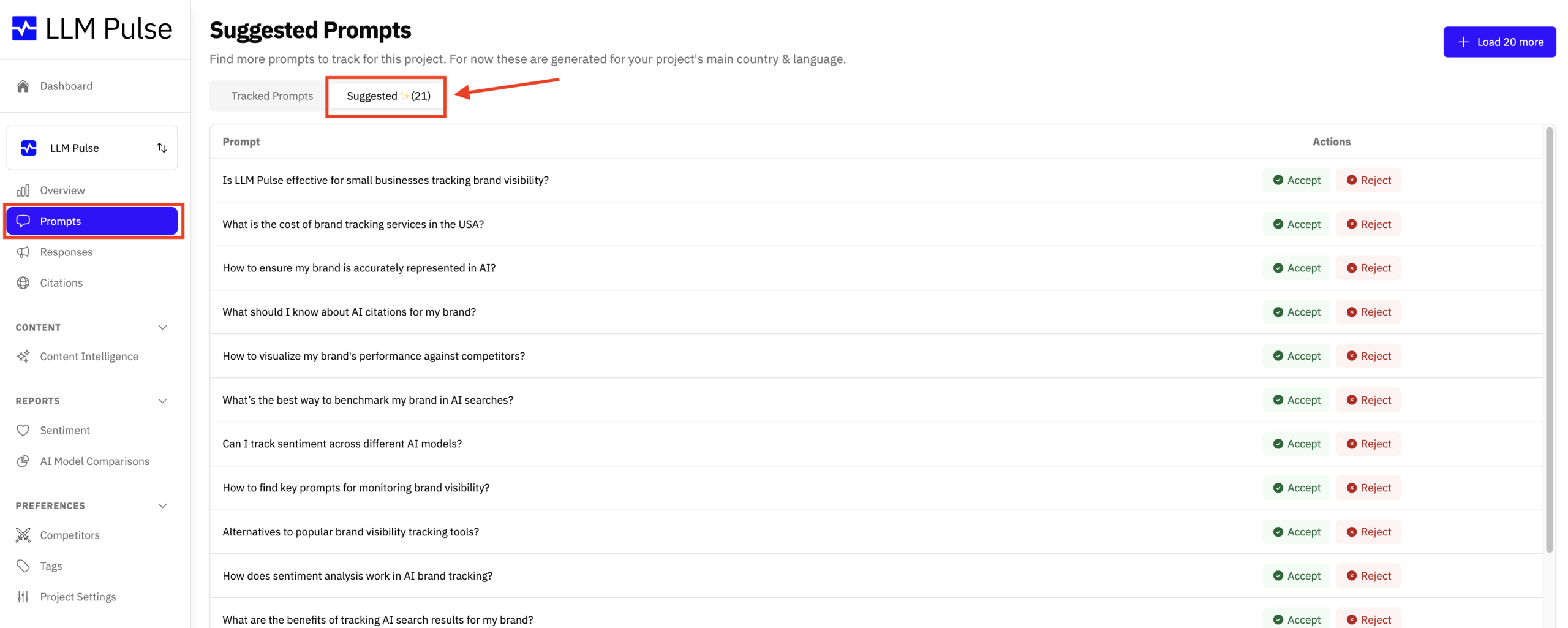
This makes prompt research an ongoing process, ensuring your visibility analysis stays relevant as your focus changes.
2. Manual prompts (single or bulk) #
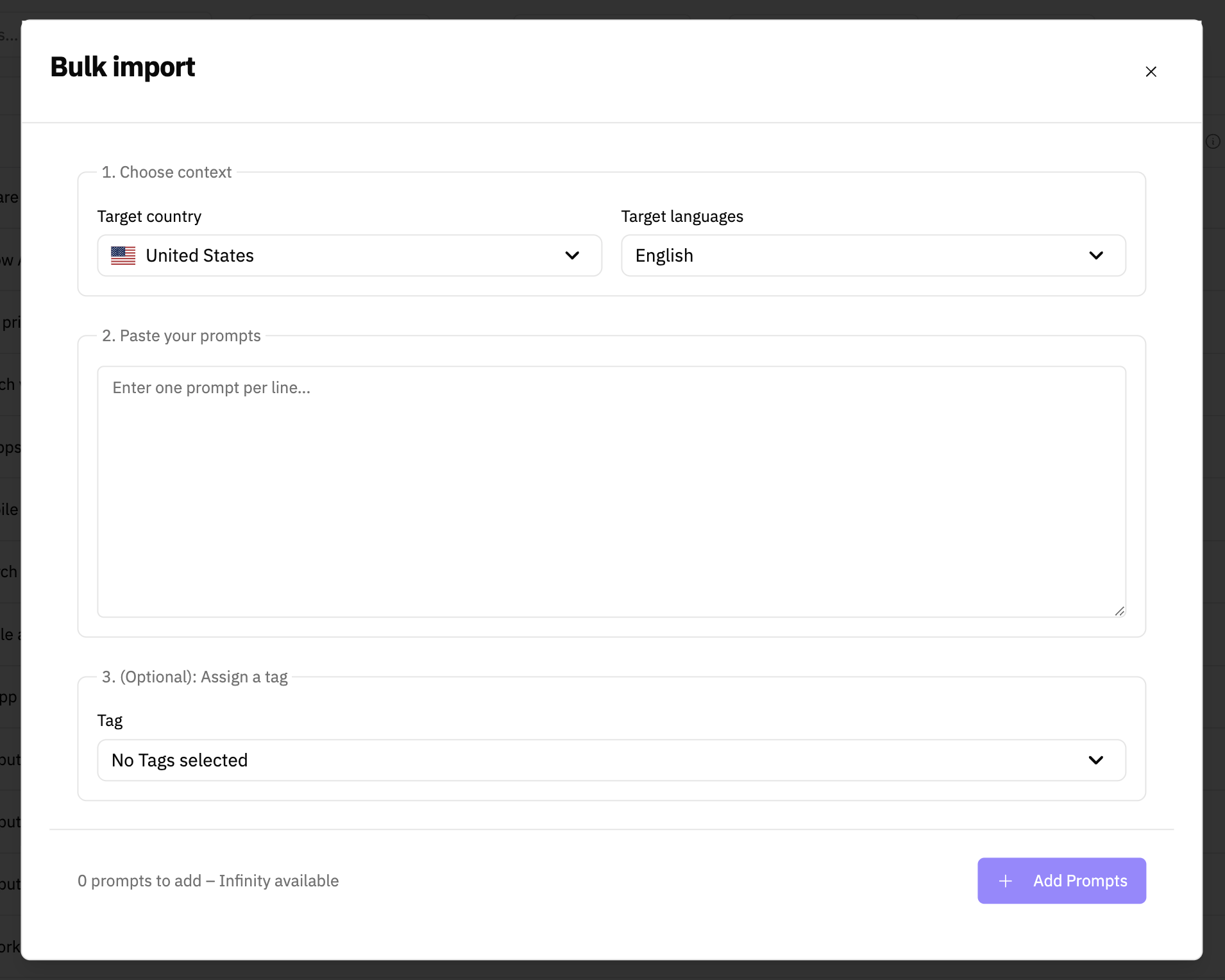
You can also add prompts manually whenever you need to. This is useful when you already know what you want to track and prefer full control over the setup. You can do this from the “Add prompts” blue button, located in the top right corner across all views in the platform.
From there, you can add prompts one by one “Single prompt” or paste a list in bulk “Bulk import”. This makes it easy to reuse existing prompt lists, migrate setups from other tools, or scale your projects without friction.
3. Google PAA (People Also Ask) #
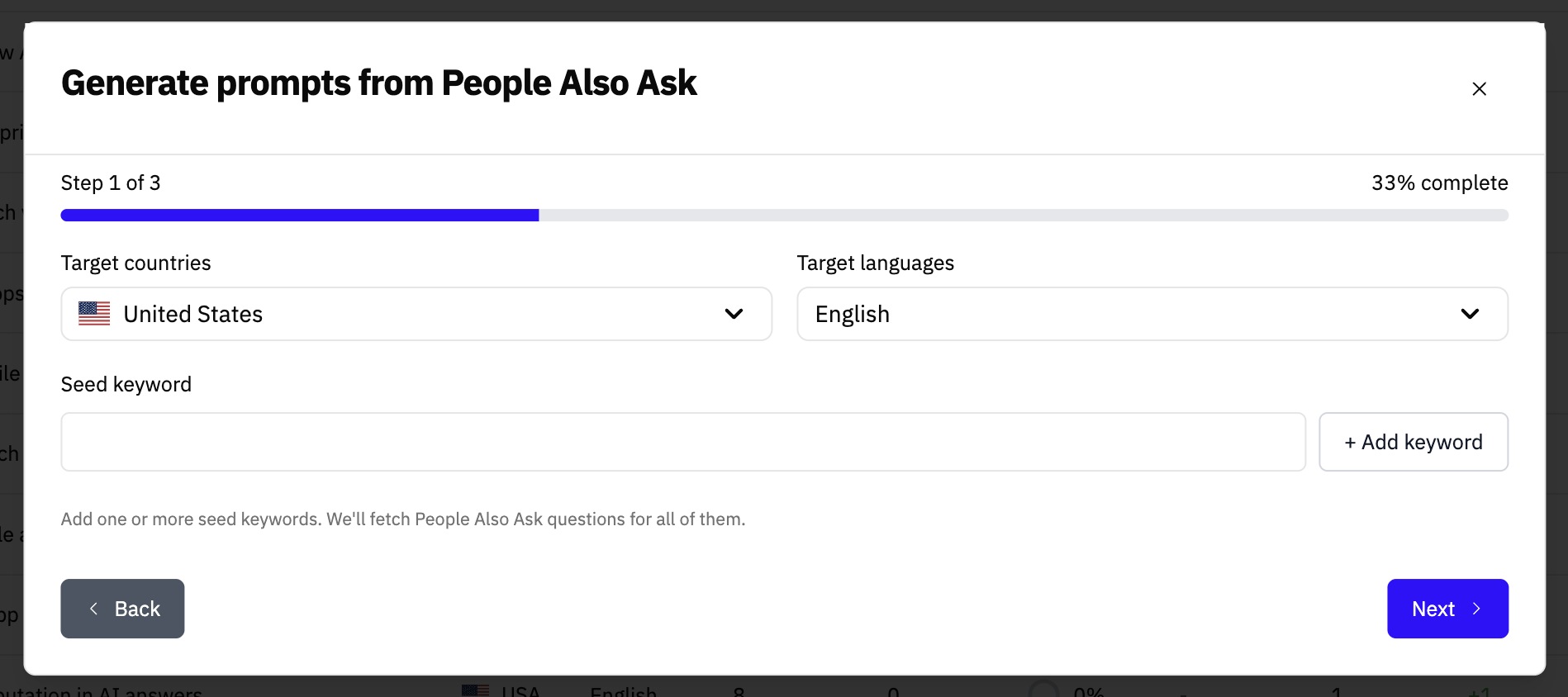
You can generate prompts directly from Google People Also Ask questions. This helps connect traditional search intent with the way users phrase questions in AI assistants.
You can do this using one or multiple keywords. It is especially useful if you already work with SEO data, since it lets you extend existing research into LLMs without changing your workflow.
This is done from the “Add prompts” button, then selecting “From PAA questions”.
4. Keyword-based prompts #
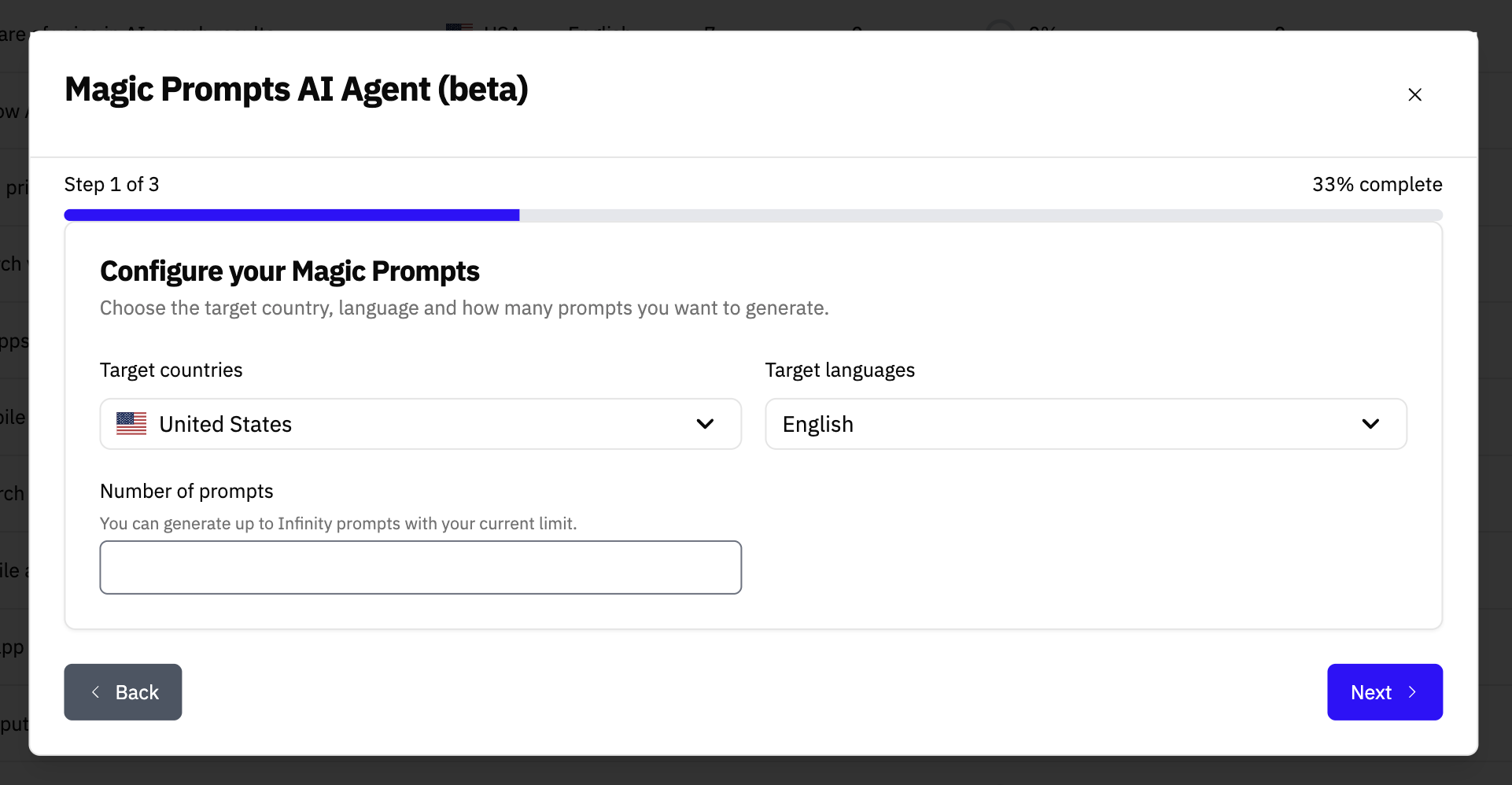
You can add prompts based on keywords your domain already ranks for. LLM Pulse converts those keywords into natural, question-based prompts that reflect how users search in LLMs.
This is ideal if you want to focus on queries that already drive visibility. You can access this option from “Add prompts” > “Magic Prompts AI Agent (beta)”.
5. Topic-based prompts #
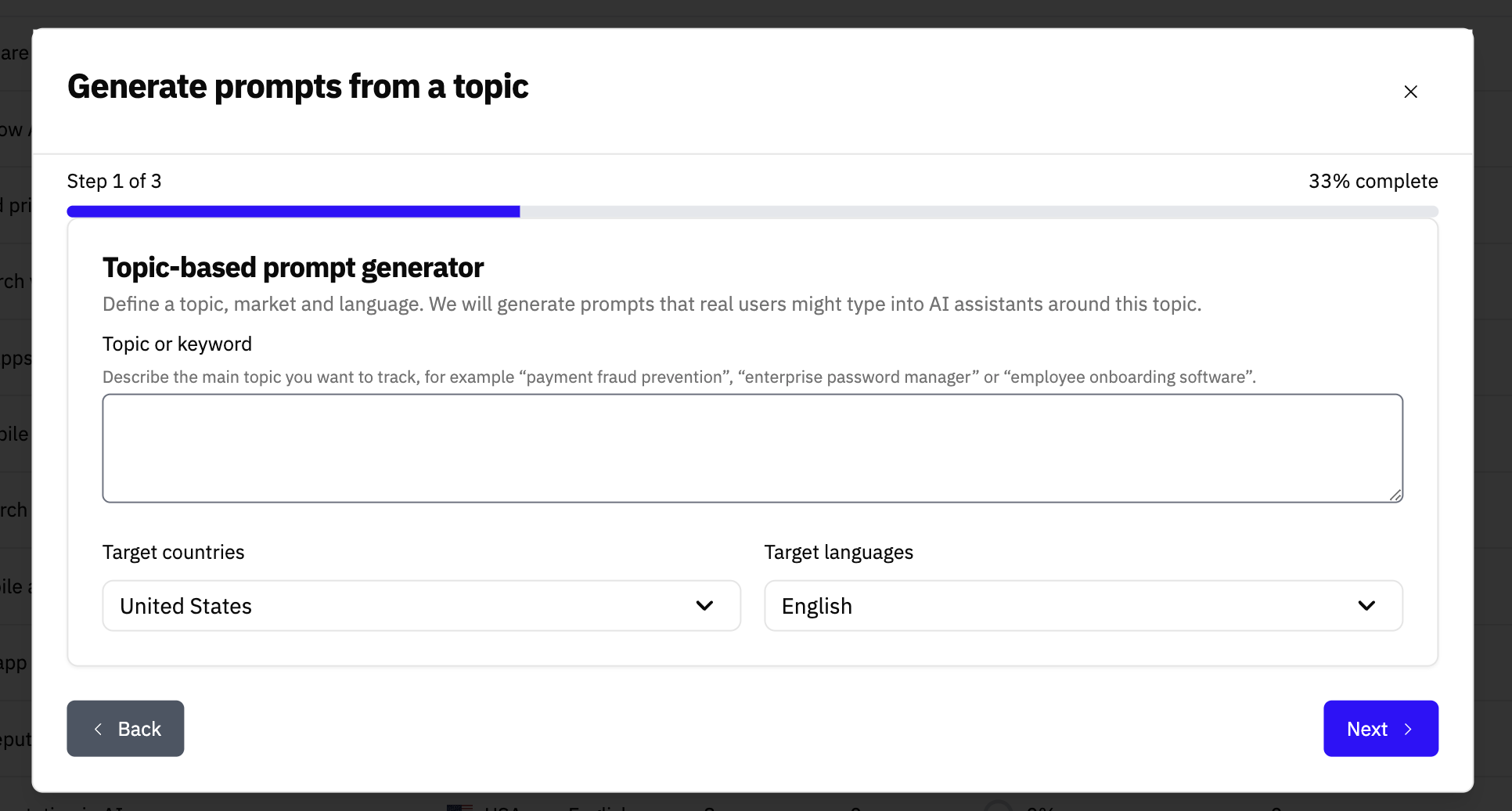
You can create prompts by defining specific topics. LLM Pulse will generate natural-language prompts related to those topics, giving you broad coverage around a subject.
This approach works well when you want to monitor a concept, product category, or problem space. You can do this from “Add prompts” > “From topic”.
Conclusions #
You can mix all these methods within the same project. There is no “correct” setup. Start simple, review the data, and iterate as you learn what really matters for your use case. Each prompt you add is automatically monitored across the four AI models currently supported by LLM Pulse, so you get consistent and comparable visibility data from day one, without any extra setup.
Adding prompts should never be a bottleneck. LLM Pulse is built to remove friction from the process, so you can spend your time analyzing insights and making decisions, not configuring the tool.


